Google Business Profile Optimization Tips – From Start to Finish
Make Your Google Listing Magnificent
Google Business Profile, formerly known as Google My Business, is a free local listings tool, or business directory, that’s essential for creating a strong digital brand presence. It puts your business information in relevant Google search results and Google Maps – which is exactly where everyone wants it to be. That’s because the conversion rate for website visits coming from GBP is three to four times higher than it is for typical Google organic search traffic.
GBP is also a great place to communicate changes in your business, such as new delivery options or altered hours. This helps your customers and prospects plan for those changes and continue to see your business in a positive light.
These days, it’s not enough to verify with Google Business Profile and be finished. Use your listing to be ultra-visible, helpful and competitive.
We’ll walk through all the details you need.
Note: If you already set up your basic Google business listing, skip to the next sections to get optimization tips.
How to Set Up Your Google Business Profile Listing in 3 Steps
1. Claim your business on Google.
If you haven’t claimed your business in GBP yet, it may still show up in search results, but you won’t have any control over the information listed. To take control, first you’ll need to prove that your business is real and located at the official address. If you have multiple locations, you’ll want to claim each one as a separate listing. Google has instructions for claiming your business here, but we’re sharing the nitty-gritty.
Here’s what you should know about access levels for your listing:
- Your account can only have one Owner, so decide which Google email to assign as the Owner. Sign into that Google account, and go to https://www.google.com/business/ to get started.
- Owners can add Managers and Site Managers to the account, add and delete listings, and perform all Google Business Profile optimization tasks.
- Managers can do everything that the Owner can – except for delete listings or manage access.
- Site Managers have only the access required to manage daily interactions through the business listing, like responding to reviews and posting content.
As you’re deciding who should have access to your Google Business Profile account, consider keeping the list short. This ensures you’ll be able to have some oversight of how your brand voice and image is communicated through your business listing.
If an agency will be managing your Google Business Profile listing(s), it’s easiest to grant them Manager access. If you are a franchise business – whether at the corporate level or franchise owner level – learn more about managing franchise local listings.
2. Verify your business with a code.
After you’ve completed the claiming process, request a verification code from Google. Many choose to receive this code by mail (postcard). But you may qualify for these alternate delivery methods:
- Text message
- Instant verification
- You may qualify if you’ve already verified your business with Google Search Console. If so, you’ll get an automatic notification when you log in to your GBP account.
- Bulk verification
- You may qualify if you have more than 10 locations and you’re not a service business or listing management agency. Just click “Chain” when you’re starting the verification process.
To verify, log into your GBP account, and click on the “Verify now” link next to the location you want to verify. (If you only have one location, there’s only one place to click!) Enter your verification code when prompted.

Note: Never received your code? Don’t worry. You can request another one, possibly with a different delivery method.
3. Complete your Google business listing profile.
Fill out the Info section of your profile. Effective GBP optimization starts with including as much accurate information as possible. Here are some tips for each area:
- Business name. The business name you enter on your business listing should be your DBA, or “doing business as” name. That means it should be the same name that appears on your website, storefront, signage, etc. Do not add something (like a city name or owner name) to your business name if it isn’t officially part of it. This is misleading to your audience and goes against Google’s rules for representing your business.
- Category. Setting a category will help customers find you more quickly. Describe your business using as few categories as possible. Do not use this area of your listing as a place to stuff keywords – but do check out our Google Business Profile SEO (search engine optimization) tips below!
- Address and service area. Make sure your address exactly matches the one on your website and your other business listings. This will ensure it shows up on Google Maps. If, for any reason, you don’t want to show your business address (e.g., it’s also a home), you can choose to hide it and just show the service region. However, make sure you fully consider the ramifications of hiding your address in GBP.
- Hours and special hours. Set your consumer-facing regular hours, and use the “special hours” area to list hours for holidays, events or unusual circumstances. The special hours don’t override your regular hours; rather, both will show up. If you have a seasonal business, alter your regular hours each season.
- Phone number. This one is fairly self-explanatory! However, be sure that the phone number you include is the same number you have on any other local listing, like Bing, Yelp, Facebook and so on.
- Profile short name. A short name works like a hashtag, helping your audience find you faster. It should be a simple name that reflects how people talk about your business. If you serve one city or town, consider including that location in the short name. For example, @ThatsMyJamTraverseCity.
- Website. Your website link should typically be your homepage URL. If you have multiple locations that are all represented within one website, point each location-specific GBP listing to a page about that location.
- Appointment link. The appointment link should be the URL of a page where users can easily schedule an appointment or contact you for an appointment.
- Products and services. You can list your core products and services here, including descriptions. Scroll down to our Google Business Profile optimization and SEO tips to learn more about these.
- Attributes. These are factual or subjective descriptors of your business that are very visible in search results. For example, “Women-Led,” “Wi-Fi Available,” “Credit Cards Accepted.” The business category you chose will determine which attributes are available. Learn more from Google.
- Business description. Make your business description short, helpful and powerful. Emphasize what you do, what your mission is and what makes your business stand out from competitors.
- Opening date. This is the day you officially opened for business.
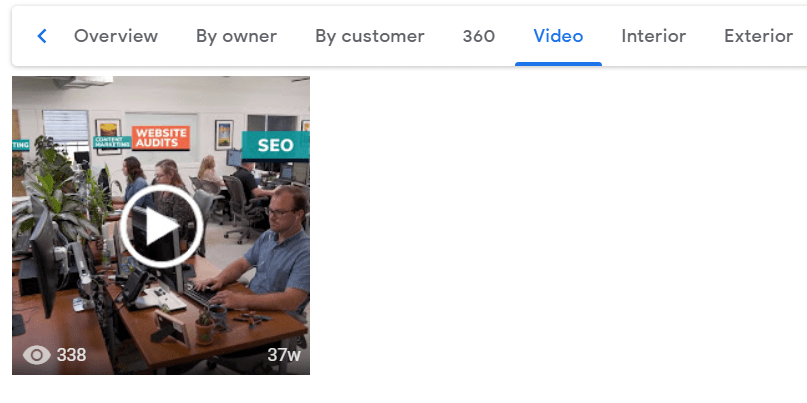
- Photos and video. Upload lots of photos here, including at least three high-quality exterior photos of your business location, a logo photo, three interior photos, and action shots of your products or services. Consider also uploading short videos (less than 30 seconds) in this section of your profile, using the menu at the top of the Photos section.
Once you get through all these details, your Google My Business listing will be looking great! Don’t forget to apply the finishing touches and keep your profile maintained, as described below.
Google Business Profile Optimization Guidelines
Part of Google My Business optimization is about using and maintaining your profile correctly. The other part is search engine optimization (SEO). We have tips for both.
Management & Maintenance for GBP Optimization
GBP isn’t a “set it and forget it” tool. If you don’t keep your information up to date, somebody else will submit a correction – which could potentially be wrong and reduce your business leads. Prevent that issue by frequently revisiting your profile and keeping it accurate.
Another extremely important part of GBP optimization is managing reviews.
What should you do with your Google Business Profile reviews?
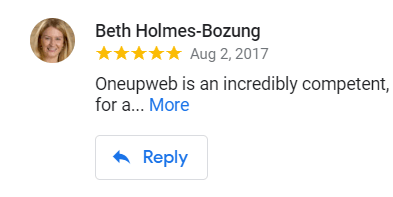
Designate one or two people as your Google Business Profile reviews scouts. They should monitor for new reviews and respond (politely and gracefully) to all of them, good and bad, within a couple of business days. They can also “thumbs up” reviews and flag any spam reviews.
Additionally, create a plan for encouraging your customers to leave more reviews. The number of reviews you have majorly increases your chances of ranking well in the “Local Pack,” or featured local search results, powered by Google Maps. That’s why we made a short video about how to get more reviews.
Google Business Profile SEO Tips
Reviews aren’t the only way to help your Google business listing rank in search results. You can also utilize these methods for beneficial Google My Business SEO:
1. Optimize your service and product descriptions.
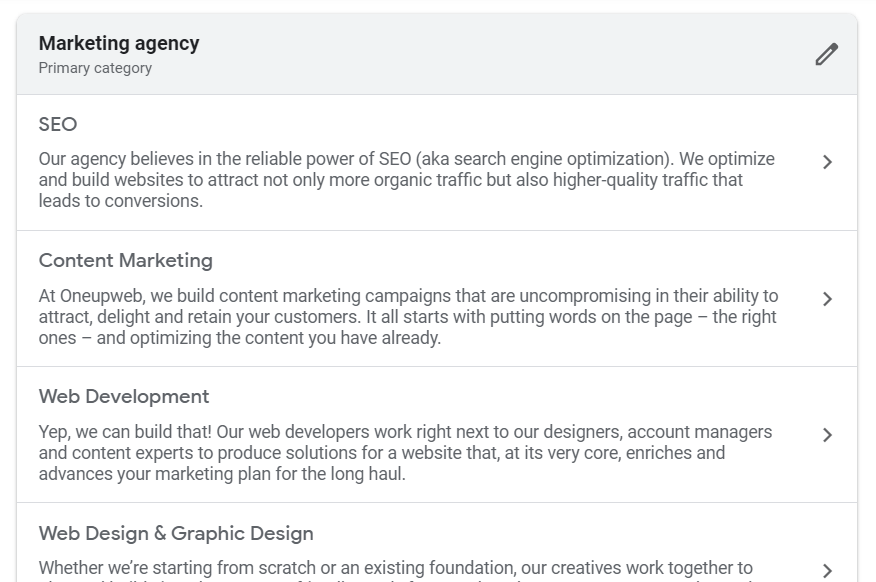
While the service and product descriptions on your GBP business listing are not a direct search ranking factor, they are still a great place for relevant keywords. The content is directly in front of your audience and may make a difference in the number of people who choose to convert. Thus, make sure your service descriptions are clear and don’t contain obscure jargon.
Here’s a peek at the descriptions for Oneupweb services within Google Business Profile:
2. Create Google Business Profile posts.
GBP offers a posting feature that works like a microblog. Many SEO professionals suspect these posts may be a ranking factor. Regardless, posts show that you care about engaging with your audience on Google. You can post about special offers, business updates, events and more using Google’s guidelines and examples.
3. Track GBP traffic separately in Google Analytics.
Our SEO and PPC teams at Oneupweb find it useful to track GBP traffic as a separate source in Google Analytics, rather than as general Google traffic. You can do this simply by tagging your website link in GBP. Then you’ll be able to analyze the differences in website behavior when people come from your GBP profile versus a traditional organic search result. (Reminder: People usually convert more often when they find you through GBP.)
Are There Google My Business Ads?
There are, but it isn’t as clear-cut as you may expect. You can’t create paid ads directly through the Google Business Profile platform, but you can link it with a Google Ads account. Linking these two accounts opens these possibilities:
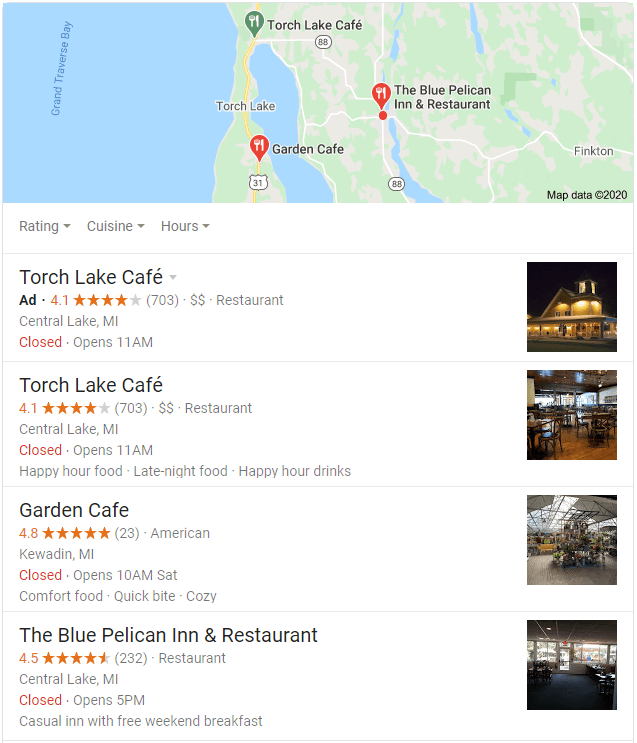
- You can create Local Search ads. This type of search ad will show up in the usual “Local Pack” of featured search results or Google Maps, as shown in the screenshot below. Your pin on the map will change color too, lending your business credibility!
- You can create Google Local Services ads. Currently, Local Service Ads are only available to some types of service businesses. You only pay when someone contacts you directly from the ad. Here’s an example of what these ads look like in search results:
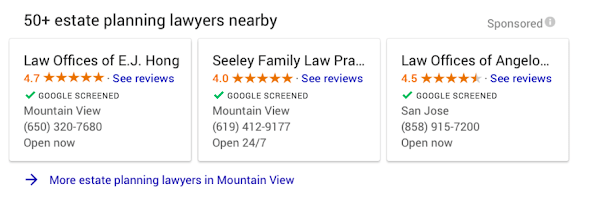
- You can get Google Guaranteed or Screened. When your business is Google Guaranteed or Google Screened, you get a green badge on your Local Services ads. Anytime someone books your services through a Google Local Services ad, Google will refund the customer (up to a certain dollar amount) if they are not satisfied.
- You can create Local Inventory Ads for products. Having a well-optimized Google My Business account increases your advertisements’ chances of being served up to your audience. And lucky for you, now you know all about proper GBP optimization!
If you’re interested in learning more about paid advertisement strategy for Google and beyond, Oneupweb’s paid media team would be happy to help.
Hey, What Happened To The Google Business Profile App?
In summer 2022, Google transitioned mobile GBP from a dedicated app to its nearly universal Google Maps app. To manage your business locations, make sure you’re logged into your Google account and use the Google Maps apps. From there, you will need to search for your business or businesses. You can still manage your profile on desktop from a dedicated page or with Google Maps; just be sure you’re logged into your account.
More Marketing Guidance
We hope you enjoyed this resource for Google Business Profile optimization. Check out the Oneupweb Knowledge Hub to explore more digital marketing guides, blogs, templates and more.
Our marketing agency is focused on making life easier for business leaders. If you’re looking for better results and less burden from marketing, give us a call at (231) 922-9977 or contact us online.